
First SignIn Guide
Microsoft 365 First Sign-In Guide
Welcome! Follow these simple steps to sign in to your Microsoft 365 account for the first time.
Step 1 - Open Microsoft 365
Open web browser Edge, Chrome, or Firefox.
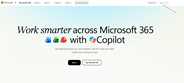
Go to https://microsoft365.com and click Sign in.
Step 2 - Enter Your Username
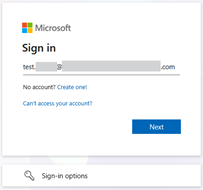
Type the work or school email address provided by your administrator and click Next.
✅ Make sure there are no spaces before or after the username.
✅ Pay attention to spelling.
✅ The username is not usually case-sensitive.
Step 3 - Enter Your Password
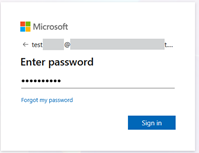
Enter the temporary password you received and click Sign in.
❌ Never share your password with other people.
❌ Do not write your password where others can see it.
✅ Keep it in a safe place.
Step 4 - Change Your Password
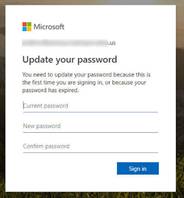
If prompted, enter the old password once and your new password twice. Choose a strong password and keep it private.
Step 5 - Protect Your Account
Microsoft will ask you to set up Multi-Factor Authentication (MFA) for extra security.
Click Next.
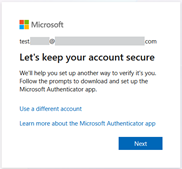
Step 6 - Start Security Setup
Follow the instructions shown on the screen.
Install Microsoft Authenticator on your phone from the App Store or Google Play.
After installing Microsoft Authenticator on mobile phone, click Next.
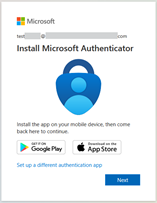
Step 7 - Scan the QR Code
Open Authenticator, add a Work or School Account, and scan the QR code displayed on your computer.
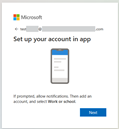
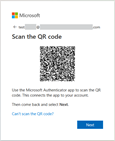
Step 8 - Approve the Test Notification
When a notification appears on your phone, tap Approve to verify the setup.
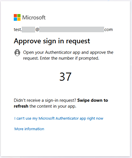
Step 9 - Finish
Click Done.
Click Yes if you wish to reduce number of signins.
Your Microsoft 365 account is now ready to use.
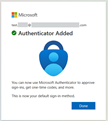
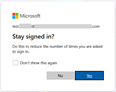
Step 10 – You are logged to Microsoft 365
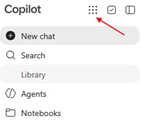
You are logged to Microsoft 365 and Copilot start page.
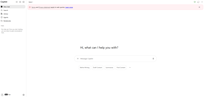
Microsoft 365 Online applications
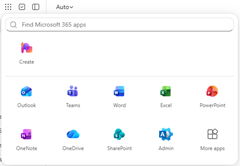
Click “9 dots” button to access Microsoft 365 Online applications like Word Online, Excel Online, Outlook Online.
Success!
You have now:
✅ Signed in to Microsoft 365
✅ Changed your password
✅ Set up Multi-Factor Authentication
✅ Secured your account
✅ Gained access to Microsoft 365 applications